Layout Settings
Each layout comes with its own set of customization options.
In this guide, we’ll cover how to customize your Profile layout.
Default Layout
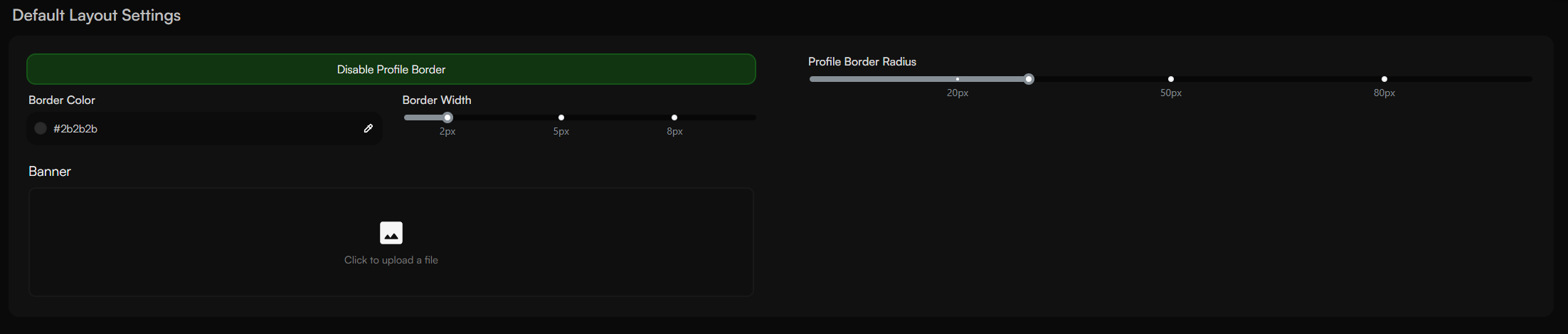
The Default Layout is the standard layout for user.rip Profiles.
It comes with the following customization options:
- Profile Banner
- Profile Border Customization (Color, Width, and Radius)
To customize your Default Layout, follow these steps:
- Select the “Default” layout at user.rip/premium
- Head over to user.rip/premium/layout
- Configure your Profile Banner and Border settings
- Click “Save Changes”
Modern Layout
The Modern Layout is a more advanced layout for user.rip Profiles.
It comes with the following customization options:
- Second Tab Widgets
- Profile Border Customization (Color, Width, and Radius)
To customize your Modern Layout, follow these steps:
- Select the “Modern” layout at user.rip/premium
- Head over to user.rip/premium/layout
- Click on “Manage Second Tab” to configure your widgets
- Configure your Profile Border settings
- Click “Save Changes”

Simplistic Layout
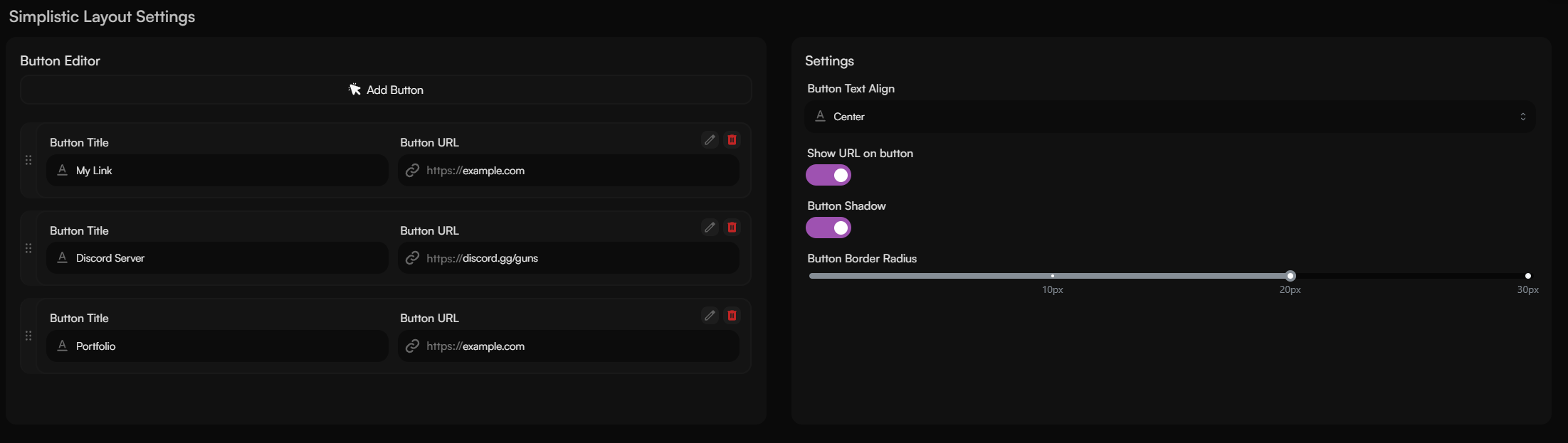
The Simplistic Layout is a minimalistic layout for user.rip Profiles.
You can add unique buttons to your Profile with this layout.
To customize your Simplistic Layout, follow these steps:
- Select the “Simplistic” layout at user.rip/premium
- Head over to user.rip/premium/layout
- Configure your Profile Buttons and Icons
- Configure Button settings
- Click “Save Changes”
Sleek Layout
The Sleek Layout is a clean & modern layout for user.rip Profiles.
It comes with the following customization options:
- Profile Banner Radius
- Profile Avatar Radius
- Profile Border Customization (Color, Width)
To customize your Sleek Layout, follow these steps:
- Select the “Sleek” layout at user.rip/premium
- Head over to user.rip/premium/layout
- Configure your layout settings
- Click “Save Changes”