Discord Connection
You can connect your Discord account to user.rip to enable Discord Presence on your profile.
This feature allows you to display your Discord status on your user.rip profile.
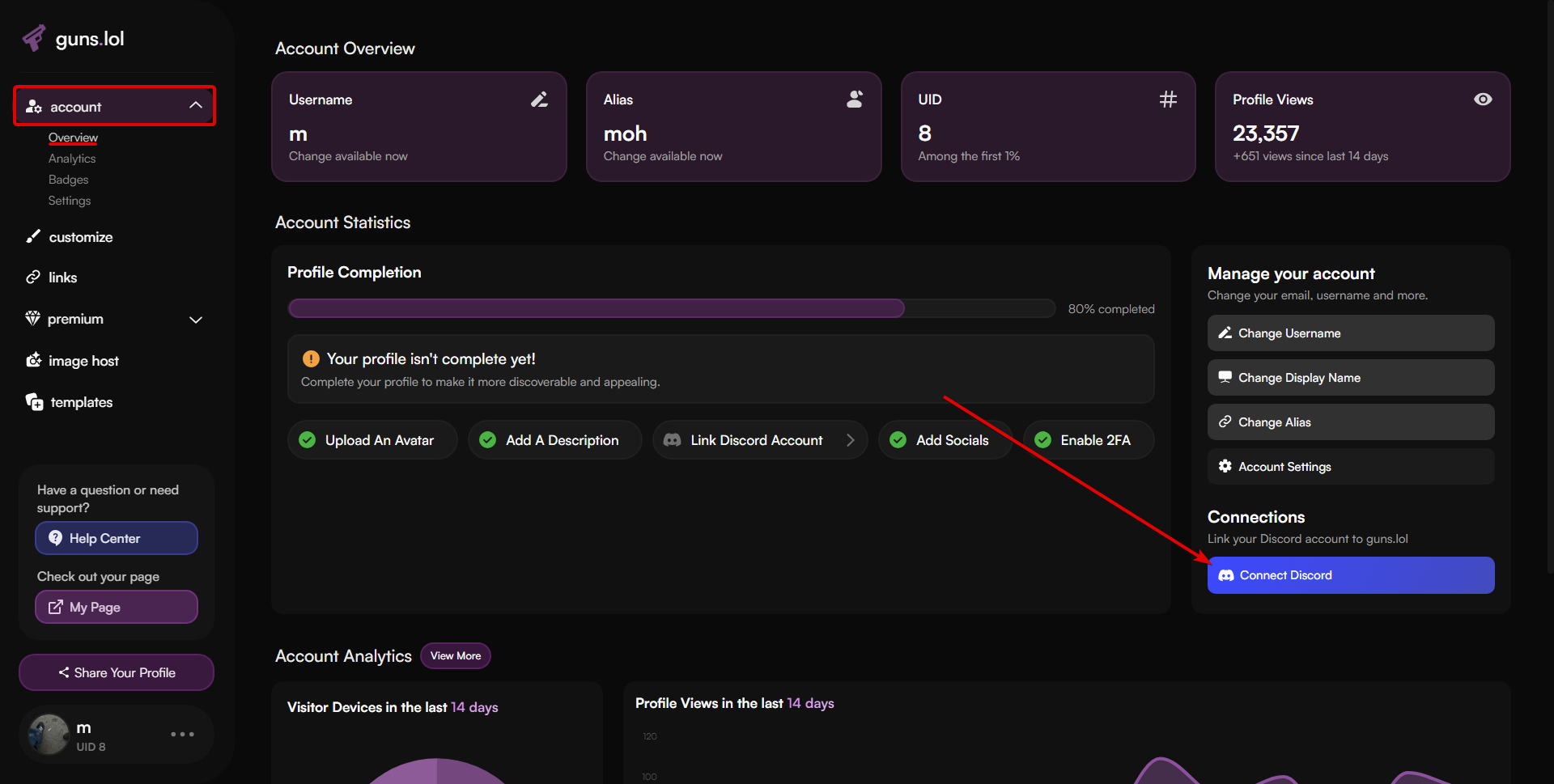
Linking Your Discord Account
To link your Discord account to user.rip, follow these steps:
- Head over to user.rip/account
- Click on the “Connect Discord” button.
- You’re all set! Your Discord account is now linked to user.rip.
Enable Discord Presence
After linking your Discord account, you can enable Discord presence on your profile.
This feature will display your Discord status on your user.rip profile.
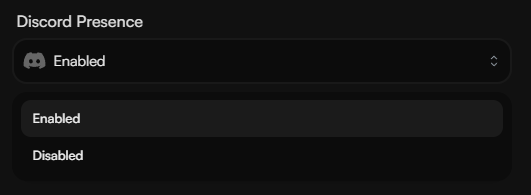
To enable Discord presence, follow these steps:
- Head over to user.rip/customize
- Scroll down to the “General Customization” section.
- Select “enabled” from the “Discord Presence” dropdown.
Don’t forget to click Save Changes after customizing your profile!
Claiming Your Roles on user.rip Discord Server
Certain badges on user.rip are linked to roles on the user.rip Discord server.
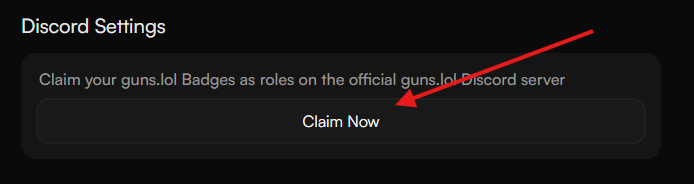
To claim your roles, follow these steps:
- Go to user.rip/account/settings
- Scroll down to the “Discord Settings” section.
- Click on the “Claim Now” button.
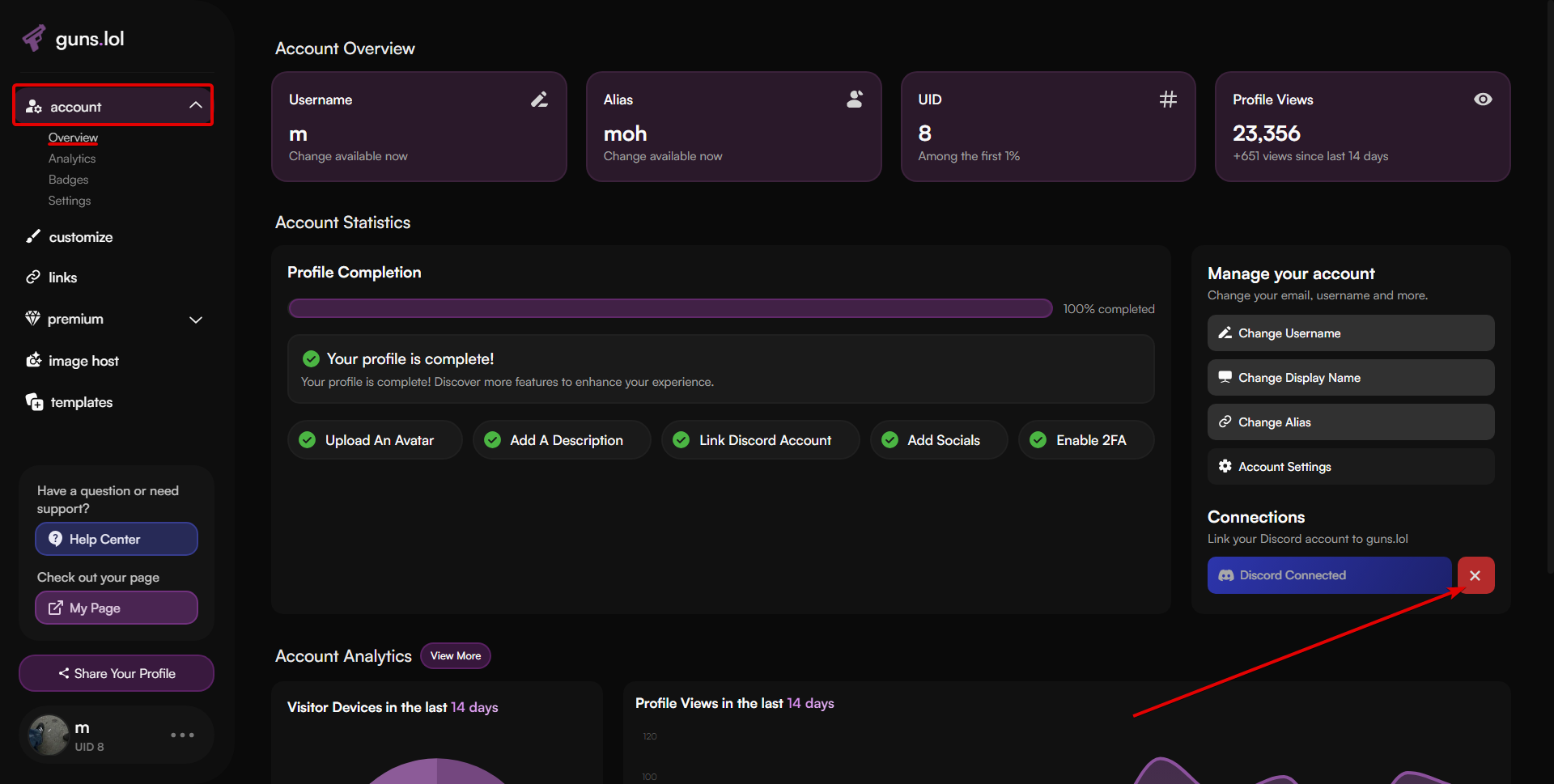
Unlinking Your Discord Account
If you want to unlink your Discord account from user.rip, follow these steps:
- Head over to user.rip/account
- Click on the “X” next to the Discord button.
- Your Discord account is now unlinked from user.rip.